

Zombie population is an important aspect of gameplay in 7 Days to Die, directly influencing the difficulty, intensity, and overall survival experience on your dedicated server. Whether you want to create a more challenging environment filled with undead enemies or reduce the number of zombies to improve server performance, adjusting the zombie population settings allows you to customize the experience according to your community's preferences. The game provides several configuration options that control how many zombies can spawn throughout the world and during specific events, such as Blood Moon hordes. One of the most important settings is MaxSpawnedZombies, which determines the maximum number of zombies that can exist across the entire game world at a given time. Increasing this value can allow more zombies to spawn simultaneously, creating a more demanding survival experience. Conversely, lowering it can reduce the number of active zombies and help minimize the performance impact on your server. It is important to understand that zombie population settings can also affect server performance. Higher spawn limits may increase CPU and memory usage, particularly when multiple players are exploring different areas or participating in large-scale encounters. For this reason, it is recommended to make adjustments gradually and monitor your server's performance to find a suitable balance between zombie density and gameplay stability. In this guide, we will walk you through how to access your 7 Days to Die server configuration file, locate the relevant zombie population settings, and modify their values to match your preferred gameplay experience. Whether you are looking to increase the zombie population for a more intense challenge or decrease it for a smoother multiplayer experience, these adjustments will help you customize your server to better suit your players.
Adjusting Maximum Number of Zombie Spawns (Console)
1. Log in to your Game Control Panel.
2. Navigate to the Web Console section.
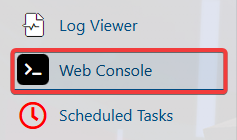
3. Enter your preferred command in the designated field.
| Command | Description |
gg MaxSpawnedZombies |
Displays the current value for max spawned zombies. |
sg MaxSpawnedZombies |
Sets the value for max spawned zombies. |
Adjusting Maximum Number of Zombie Spawns (Config)
1. Log in to your Game Control Panel.
2. Before making any modifications, stop the server from running by clicking the Stop button.

3. Navigate to Configuration Files.
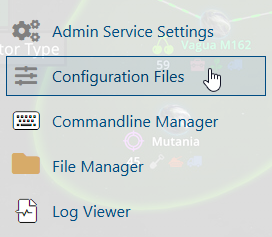
4. In the Configuration Files section, locate the serverconfigmain.xml file and click Text Editor to open and edit the file.

5. In the configuration file, locate the <!-- Performance related --> section and adjust the MaxSpawnedZombies value to your preferred maximum number of simultaneously spawned zombies.

(Note: Setting this value too high (above approximately 80) may negatively impact server performance, resulting in lower framerates, increased lag, and a degraded gameplay experience for connected players.)
6. After editing, click the Save button to apply the changes.