

This guide will show you how to Set Up Static Player Spawn Points in your Project Zomboid Server
Click here to order your Project Zomboid server with Citadel today!
Default player spawn points play an important role in shaping the multiplayer experience on your Project Zomboid server. By configuring spawn locations, server administrators can influence where players begin their survival journey when joining the world, making it easier to organize cooperative gameplay, establish roleplaying scenarios, or create a more structured survival environment. Whether you want players to start in a specific town, gather in a designated safe zone, or begin their adventure in a particular area of the map, adjusting the spawn point settings can help you tailor the experience to your community's preferences. Setting up default player spawn points is particularly useful for servers that follow specific gameplay rules or feature custom maps, roleplaying communities, or coordinated group survival. For example, you might want all new players to begin in the same town so they can meet other survivors, establish a shared base, and work together from the beginning. Alternatively, you may prefer to direct players toward a particular location to support your server's story, encourage exploration, or create a consistent starting experience for newcomers. In this guide, we'll walk you through how to set up default player spawn points on your Project Zomboid server by locating and adjusting the appropriate configuration settings. You'll learn where to find the relevant configuration file, how to specify the desired spawn location, and how to apply the changes so that players can start in your chosen area. We'll also explain important considerations when configuring spawn points to help ensure your settings work as intended. Before making changes, we recommend stopping your server and backing up your existing configuration files. This helps protect your current settings and allows you to restore them if necessary. After updating the spawn point configuration, save your changes and restart the server if required. Keep in mind that spawn settings may affect new characters or players joining under specific conditions, rather than automatically relocating existing characters. Test the configuration with a new character to confirm players spawn at the intended location.
Setting Up Static Player Spawn Points
1. Log in to your Game Control Panel.
2. Before making any modifications, stop the server from running by clicking the Stop button.

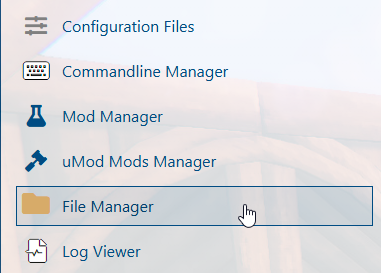
3. Navigate to the File Manager section.
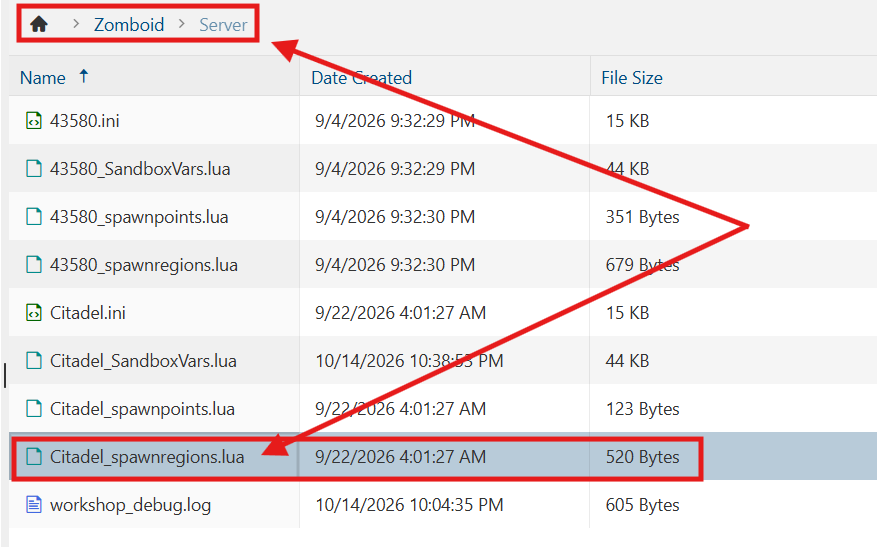
4. Navigate to the /Zomboid/Server directory, locate the [SaveName]_spawnregions.lua file, and open it.
5. Inside the return brackets, add the following code on a new line:
{ name = "Brandenburg,KY", file = "media/maps/Brandenburg, KY/spawnpoints.lua" },
{ name = "Echo Creek,KY", file = "media/maps/Echo Creek, KY/spawnpoints.lua" },
{ name = "Ekron,KY", file = "media/maps/Ekron, KY/spawnpoints.lua" },
{ name = "Fallas Lake,KY", file = "media/maps/Fallas Lake, KY/spawnpoints.lua" },
{ name = "Irvington,KY", file = "media/maps/Irvington, KY/spawnpoints.lua" },
{ name = "March Ridge,KY", file = "media/maps/March Ridge, KY/spawnpoints.lua" },
{ name = "Valley Station,KY", file = "media/maps/Valley Station, KY/spawnpoints.lua" },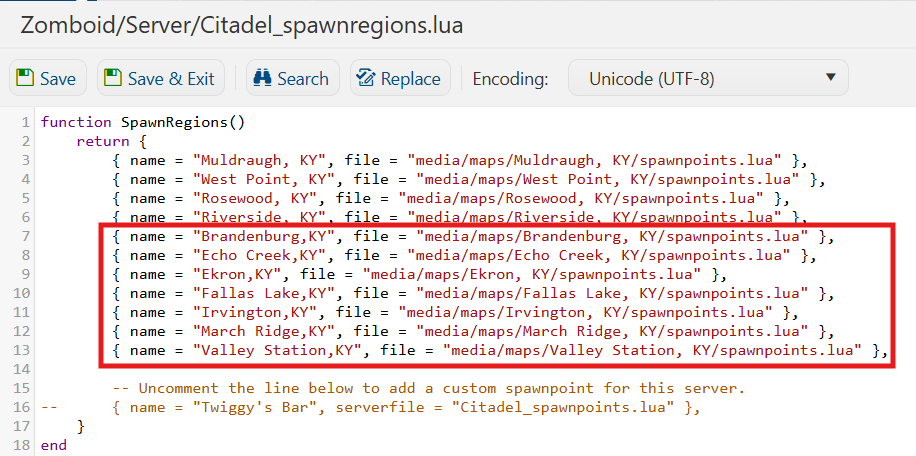
(Note: The spawn region names are intentionally formatted without spaces.)
6. After editing, click Save to apply the changes.

You can now start playing on your server.
Did the above information not work for you?
Please click here to contact our support via a ticket.