
This guide will show you how to Set Up GOG for your Project Zomboid Server
Click here to order your Project Zomboid server with Citadel today!
Project Zomboid offers a variety of server configuration options that allow you to customize your multiplayer experience and adjust how the game behaves for players. If you want to configure GOG for your Project Zomboid server, you need to know where the relevant settings are and how to change them to achieve your desired setup. This guide will walk you through the process of setting up GOG for your Project Zomboid server by accessing the appropriate configuration file and adjusting the relevant settings. Whether you are managing a private server for friends or a dedicated multiplayer community, configuring your server settings correctly can help ensure that your server behaves as intended. Before making any changes, we recommend stopping your server to prevent configuration conflicts and creating a backup of your existing configuration file. Once you have made the necessary adjustments, save the changes and restart your server for them to take effect. When enabling GOG compatibility, keep in mind that the exact procedure may vary depending on your server hosting provider and the Project Zomboid build you are running. For example, some dedicated server setups require disabling Steam integration by setting -Dzomboid.steam to 0 in the server's launch configuration. This allows the server to operate in non-Steam mode, which may be necessary for GOG players to connect. By following the steps in this guide, you can configure the appropriate server settings and test whether players using the GOG version can connect successfully. Always verify compatibility with your hosting provider before changing launch settings, as switching networking modes may affect Workshop mods and other Steam-dependent features.
Enabling GOG Server Settings
1. Log in to your Game Control Panel.
2. Before making any modifications, stop the server from running by clicking the Stop button.

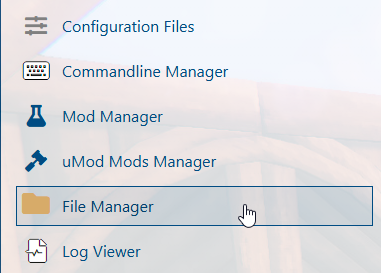
3. Navigate to the File Manager section.
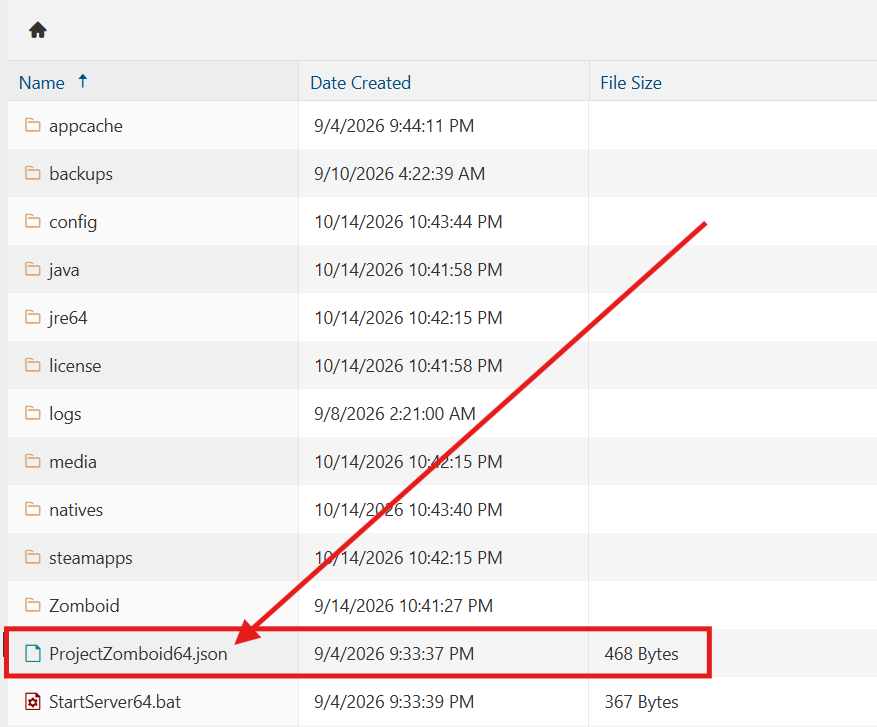
4. In the root directory, locate the ProjectZomboid64.json file and open it to access its configuration settings.
(Note: The ProjectZomboid64.json file cannot be edited directly through the server's File Manager. You will need to download the file to your local PC and open it using a suitable text editor. Once you have made and saved the necessary changes, replace the existing file on the server and upload the modified file to the same directory where the original file was located.)
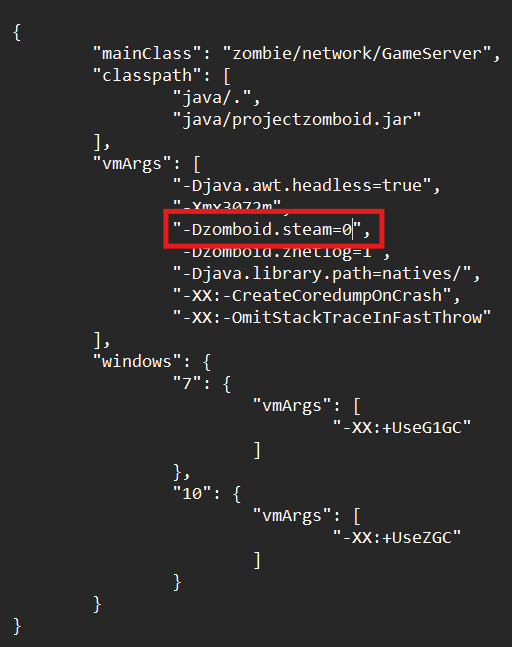
5. In the file, locate the "vmArgs" section and change the value of -Dzomboid.steam to 0 to disable Steam integration.
Ensure that you save the changes before reuploading the file to the server.
Did the above information not work for you?
Please click here to contact our support via a ticket.