
This guide will show you how to edit the Server Welcome Message on your Project Zomboid Server
Click here to order your Project Zomboid server with Citadel today!
The welcome message on your Project Zomboid server is a useful way to introduce your server to new players, share important information, and communicate your community's rules or expectations. Whether you run a private server for friends or a public multiplayer community, customizing this message allows you to provide players with a personalized introduction when they join your world. You can use it to welcome newcomers, display server guidelines, share Discord community details, explain gameplay settings, or remind players of important information before they begin their survival adventure. Project Zomboid offers server configuration options that allow administrators to customize certain messages displayed to players when they connect. By editing the appropriate setting in your server's configuration file, you can replace the default welcome text with a message that reflects your server's identity and provides useful information to your community. This is particularly helpful for servers with custom rules, roleplay requirements, cooperative gameplay, or specific mod-related instructions. When preparing your welcome message, consider keeping the text concise and easy to read. You can also use supported formatting tags, such as <LINE> to insert line breaks and <RGB:r,g,b> to change text colors, making important announcements or server rules easier to distinguish. In this guide, we will walk you through how to locate the ServerWelcomeMessage setting in your Project Zomboid server configuration, customize the message to suit your needs, and apply the changes so players can see your updated welcome text when they join.
Personalizing Your Project Zomboid Server's Welcome Message
1. Log in to your Game Control Panel.
2. Before making any modifications, stop the server from running by clicking the Stop button.

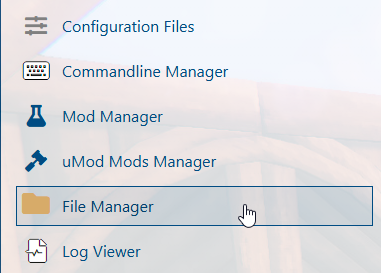
3. Navigate to the File Manager section.
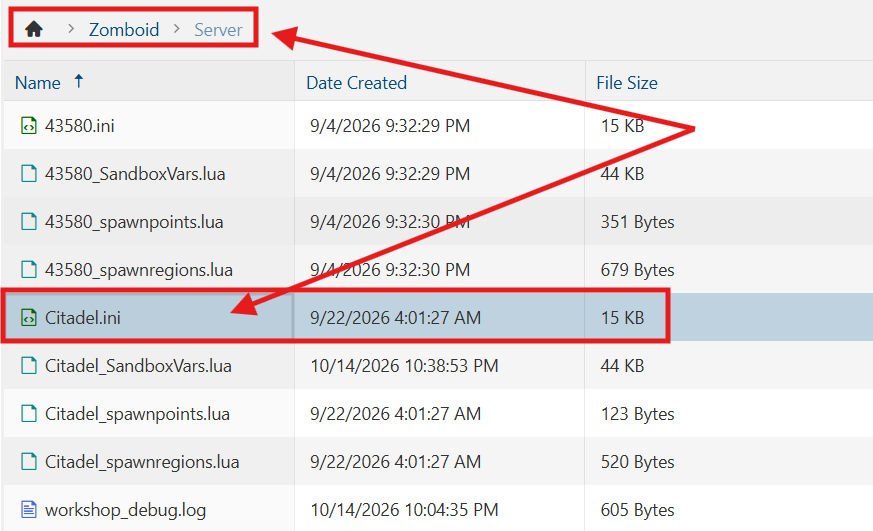
4. Navigate to the /Zomboid/Server directory and locate the [SaveName].ini file, replacing [SaveName] with the name of your server's save.
5. In the configuration file, locate the ServerWelcomeMessage= line and enter your desired welcome message. To customize the formatting, use <LINE> to insert a line break or <RGB:R,G,B> to apply a custom RGB color to the text. Replace R,G,B with your preferred RGB color values.

6. After editing, click Save to apply the changes.

You can now start playing on your server.
Did the above information not work for you?
Please click here to contact our support via a ticket.