
This guide will show you how to remove or Ban Players from your HumanitZ Server
Order a HumanitZ Server today with Citadel Servers
Managing a multiplayer server requires more than simply keeping the server online. As a HumanitZ server owner or administrator, you may occasionally need to remove players who are disrupting gameplay, violating your server rules, harassing other members, or otherwise negatively affecting the community. Being able to properly kick or ban players helps you maintain a fair, enjoyable, and well-moderated environment for everyone. HumanitZ provides server administration options that let authorized administrators manage player access when needed. A kick is generally used as a temporary measure to remove a player from the server, while a ban is intended to prevent a player from reconnecting until the ban is removed or expires, depending on the available server configuration. Understanding the difference between these actions can help administrators choose the appropriate response to different situations. Before removing or banning a player, it is also important to establish clear server rules and apply them consistently. For minor issues, a warning or temporary removal may be sufficient. More serious or repeated violations may justify a ban. Using these tools responsibly can help prevent unnecessary conflicts while ensuring that disruptive behavior does not negatively impact other players. In this guide, you’ll learn how to remove or ban players from your HumanitZ server, including the available administration methods, how to identify the correct player, and how to apply the appropriate action. We’ll also cover important considerations when managing bans and provide a guide for handling common issues that may occur during the process. Whether you’re running a private server for friends or managing a larger public HumanitZ community, knowing how to effectively manage player access is an essential part of server administration. By following the steps below, you can keep your server organized, secure, and enjoyable for your players.
(Note: The following method requires RCON to be enabled and properly configured on your server.)
Kicking and Banning Players
1. Log in to your Game Control Panel and navigate to your service.
2. Before making any changes, ensure that your server is fully stopped.
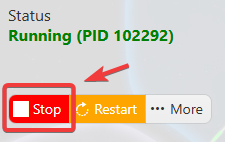
This helps prevent configuration changes from being overwritten or reverted to their default values.
3. Navigate to the Web Console tab to access the console commands.
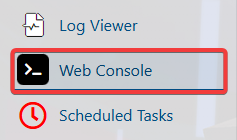
4. Run the players command to retrieve the Steam IDs of all players currently connected to the server.
5. Run the appropriate command from the list below, replacing the placeholder with the designated player’s SteamID.
| Command | Description |
|---|---|
kick [SteamID] |
Removes the player from the server. |
ban [SteamID] |
Removes the player and adds them to the banlist. |
unban [SteamID] |
Removes a player's SteamID from the banlist. |
fetchbanned |
Lists the SteamID for all currently banned players. |
How to Use the Banlist on Your HumanitZ Server
1. Log in to your Game Control Panel and navigate to your service.
2. Before making any changes, ensure that your server is fully stopped.
This helps prevent configuration changes from being overwritten or reverted to their default values.
3. Navigate to the Configuration Files tab to access your server’s configuration settings.
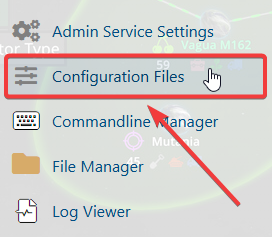
4. In the Configuration Files section, locate the F_BannedPlayers.txt file, then click Text Editor next to it to open the configuration settings.

5. Enter each player’s SteamID64 on a separate line. If you need to add multiple SteamIDs, enter one ID per line.

6. Once you have finished editing the settings, click the Save button to apply the changes to your server.