

This guide will show you how to customize the Save Interval on your HumanitZ Server
Order a HumanitZ Server today with Citadel Servers
Customizing the save interval on your HumanitZ server allows you to control how frequently the server automatically saves game progress and world data. Adjusting this setting can help balance server performance with the need to keep player progress up to date. In this guide, we’ll walk you through how to customize the save interval on your HumanitZ server and apply the changes correctly.
Changing the Save Interval
1. Log in to your Game Control Panel and navigate to your service.
2. Before making any changes, ensure that your server is fully stopped.
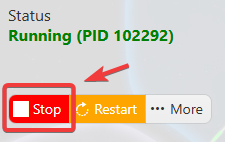
This helps prevent configuration changes from being overwritten or reverted to their default values.
3. Navigate to the Configuration Files tab to access your server’s configuration settings.
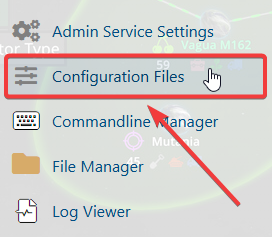
4. In the Configuration Files section, locate the gameserversettings.ini file, then click Config Editor next to it to open the configuration settings.

5. Locate the Saves Timer field, then select the preferred save interval.

(Note: The save interval is in seconds. The default interval is 300 seconds, or 5 minutes).
6. Once you have finished editing the settings, click the Save button to apply the changes to your server.

If you prefer to modify the server name directly within the configuration file instead of using the UI, click Text Editor next to Config Editor and make your changes there.
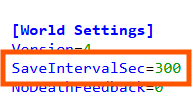
Using the Text Editor allows you to preserve custom configurations, such as installed mods and custom scenarios, without having them overwritten or affected by the preset settings in the Config Editor.