
This guide will show you how to start a Fresh Save on your Factorio Server
Click here to order your Factorio server with Citadel Today!
Starting a fresh save on your Factorio server is a great way to give your community a fresh start, experiment with different world-generation settings, or experience the game from the ground up. Whether your current factory has reached its limits, you want to explore a different map layout, or your players simply want to start a new production network, generating a fresh save allows everyone to enjoy a completely new Factorio experience. A new save creates an entirely separate game world with its own terrain, resources, starting area, and map-generation settings. Before creating a new save, understand that it will change the world your server loads when it starts. Your existing factory, structures, research progress, and other world-specific progress will remain in the previous save file, but they will not carry over to the newly generated world. We strongly recommend creating a backup of your current save before proceeding so you can restore your previous world whenever needed. In this guide, we will walk you through the process of generating and loading a fresh save on your Factorio server. By following these steps, you can start a completely new world and give your players a clean slate to build, automate, and expand their factories together.
Starting a New Game on Your Factorio Server
1. Log in to your Game Panel to start your server.
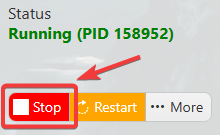
2. Before making any modifications, stop the server from running by clicking the Stop button.
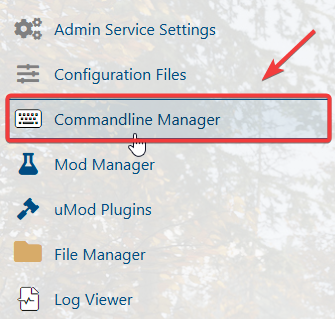
3. Navigate to the Commandline Manager section.
4. In the Commandline Manager, locate the Save Name field and enter your preferred name for the new save. Ensure the save name does not contain spaces or special characters.
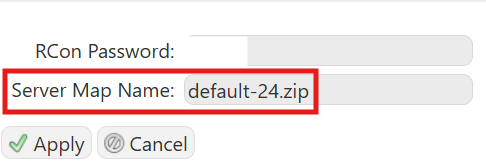
5. Once you've made the necessary changes, click Apply to save and apply the updated settings.
6. Start the server.

How to Load a Previous Save on Your Factorio Server
1. Log in to your Game Panel to start your server.
2. Before making any modifications, stop the server from running by clicking the Stop button.
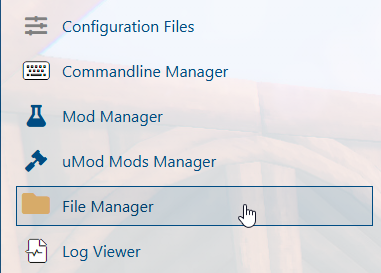
3. Navigate to the File Manager section.
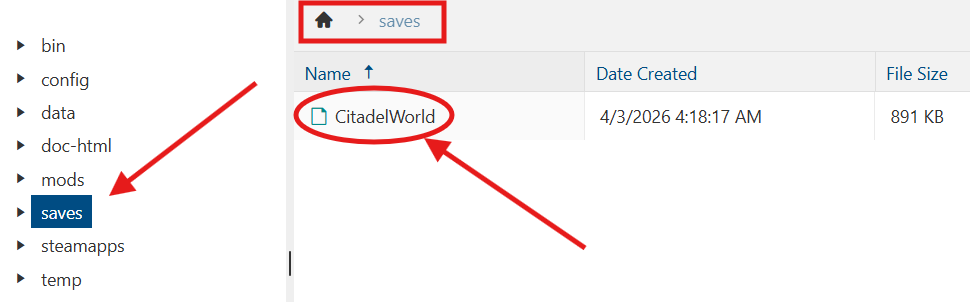
4. Open the saves folder and copy the name of the save file you want to load on your server.
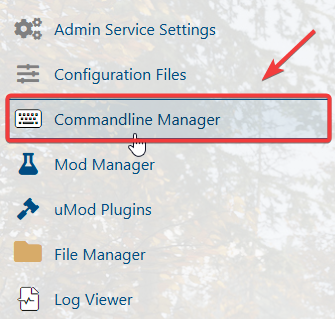
5. Navigate to the Commandline Manager section.
6. In the Save Name field, enter the copied save name from Step 4 to specify which save file your server should load.
Ensure the save name does not contain spaces or special characters.
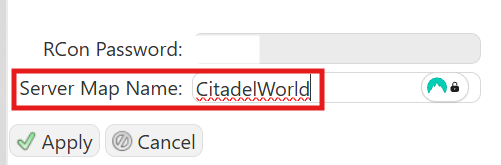
5. Once you've made the necessary changes, click Apply to save and apply the updated settings.
6. Start the server.
Please click here to contact our support via a ticket.
