

This guide will show you how to Configure Crossplay on your Palworld Server
Not a client yet? Order a Palworld Server today with Citadel Servers
Crossplay allows players using different supported platforms to connect and play together on the same Palworld server. For server owners, configuring crossplay can make it easier to bring players together across platforms and provide a more flexible multiplayer experience, particularly for communities where players use different gaming systems. Depending on your server setup, you may need to adjust the appropriate server configuration settings to enable or disable crossplay. Properly configuring these settings ensures that your server uses the intended crossplay behavior and can help prevent connection issues when players attempt to join from supported platforms. In this guide, we'll walk you through how to configure crossplay on your Palworld server, including where to find the relevant configuration option, how to change its value, and how to apply the changes correctly. We'll also cover the basic steps you should follow after updating the configuration to ensure the new setting takes effect. Whether you want to enable crossplay for a broader player base or disable it for a platform-specific server, this guide will help you configure the setting and manage crossplay according to your server's requirements.
Configuring Crossplay Options
Order a Palworld Server today with Citadel Servers
Managing base capacity and active worker limits is one of the most critical decisions for a Palworld server administrator. Whether you want to accommodate large guilds building vast industrial automation networks or cap worker counts to prevent server lag and frame drops, modifying base and worker limits directly shapes your server’s economy, progression pace, and hardware resource utilization. By default, Palworld enforces conservative caps on both the maximum number of bases a guild can build and the total number of Pals assigned to work at a single base camp. Adjusting these boundaries allows server owners to tailor base-building freedom to match their hardware capabilities and community size. While increasing worker and base caps enables massive automation projects, it directly increases the computational load on your server's CPU and RAM. Each active worker Pal requires real-time pathfinding, task AI evaluation, physics calculations, and item transport logic. Setting worker caps too high on crowded dedicated servers can result in Pal pathfinding bugs, delayed AI responses, or server tick-rate drops. Adjustments are typically applied by modifying the PalWorldSettings.ini configuration file or entering custom parameter overrides in your hosting provider's management console.
Configuring Max Base Camps and Worker Pals
1. Log in to your Game Control Panel.
2. Before making any modifications, stop the server from running by clicking the Stop button.

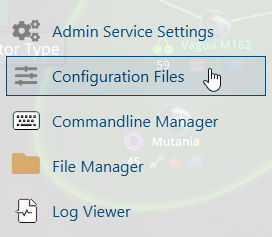
3. Navigate to the Configuration Files section.
4. In Configuration Files, look for the Pal\Saved\Config\WindowsServer\PalWorldSettings.ini file and click the Text Editor beside the Config Editor.

5. In the Text Editor, locate the Crossplay Platforms field and enter the desired platforms, separating each platform with a comma.
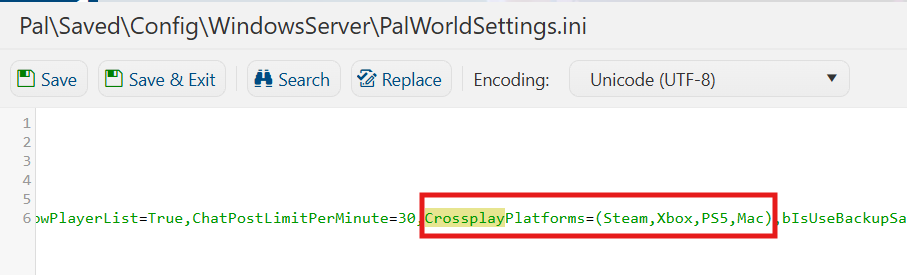
6. After editing, click Save to apply the changes.

You can now start playing on your server.
Did the above information not work for you?
Please click here to contact our support via a ticket.