

This guide will show you how to change the Chat Limit on your Palworld Server
Not a client yet? Order a Palworld Server today with Citadel Servers
If you're running a Palworld server with a large group of players, the default chat limit may not always be ideal for your community. Depending on how your server is configured, you may want to increase the limit to allow players to communicate more freely, or lower it to keep chat more manageable and reduce unnecessary messages. Changing the chat limit can be particularly useful for dedicated servers, community servers, and multiplayer worlds where several players are communicating at the same time. A higher limit can make it easier for players to coordinate activities, share information, and communicate during busy sessions, while a lower limit can help keep conversations more focused. In this guide, we'll walk you through how to change the chat limit on your Palworld server, including where the relevant configuration settings are located, which value you need to modify, and how to apply the change correctly. We'll also cover what to do if the setting isn't immediately available in your server's configuration files and explain the steps needed to make sure the new limit takes effect. Whether you're looking to increase the chat limit for a larger player base or simply customize your server's communication settings, this guide will help you configure the appropriate value and get your Palworld server running with the chat limit you want.
Changing the Chat Limit
1. Log in to your Game Control Panel.
2. Before making any modifications, stop the server from running by clicking the Stop button.

3. Navigate to the Configuration Files section.
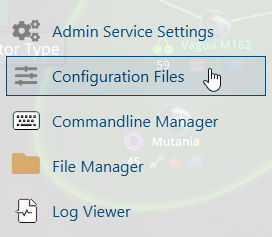
4. In Configuration Files, look for the Pal\Saved\Config\WindowsServer\PalWorldSettings.ini file and click the Text Editor beside the Config Editor.

5. In the Text Editor, locate the Message per Minute Limit field. Enter the maximum number of messages you want each player to be allowed to send per minute in the Value field.
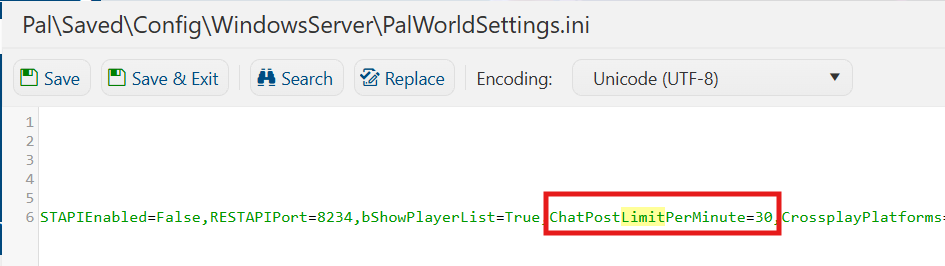
6. After editing, click Save to apply the changes.

You can now start playing on your server.
Did the above information not work for you?
Please click here to contact our support via a ticket.