

This guide explains how to upload your local ASKA save to your server.
It covers locating your save files on your PC, compressing and uploading them to the server’s Saves folder via the File Manager, updating the save ID in the configuration file, and restarting the server to continue your progress online.
This guide will show you how to upload your local save to your ASKA server.
Click here to order your ASKA server with Citadel Servers today!
1. Log in to your Game Control Panel.
2. Open the File Manager and find the Saves Folder.
If the saves folder is not available, use the Symlink Command.
Wait for the sync to finish, then check the File Manager again.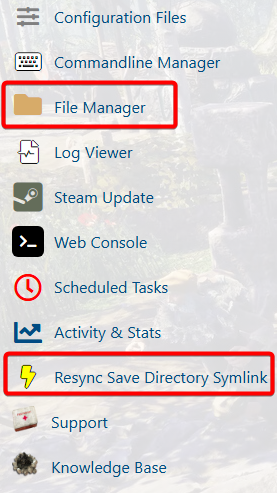
3. To find your local save files, we can use the Windows Run command.
Press "Windows+R" to open it. To easily navigate to the correct directory,
Copy and paste this to the box: %LocalAppData%low\Sand Sailor Studio\Aska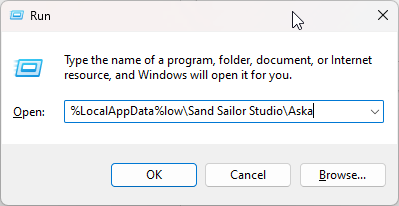
4. Once the command is run, it will open the Game's main directory.
Open the data folder. The saves will be available there.
The saves are folders, so it's best to package them as a .rar or .zip file for the upload.
Once packaged, move the zip/rar file to the desktop for easier navigation when we upload it.
If there are multiple saves, log in and play the save you want to upload.
That will update the date modified tab for you to find it in the bunch.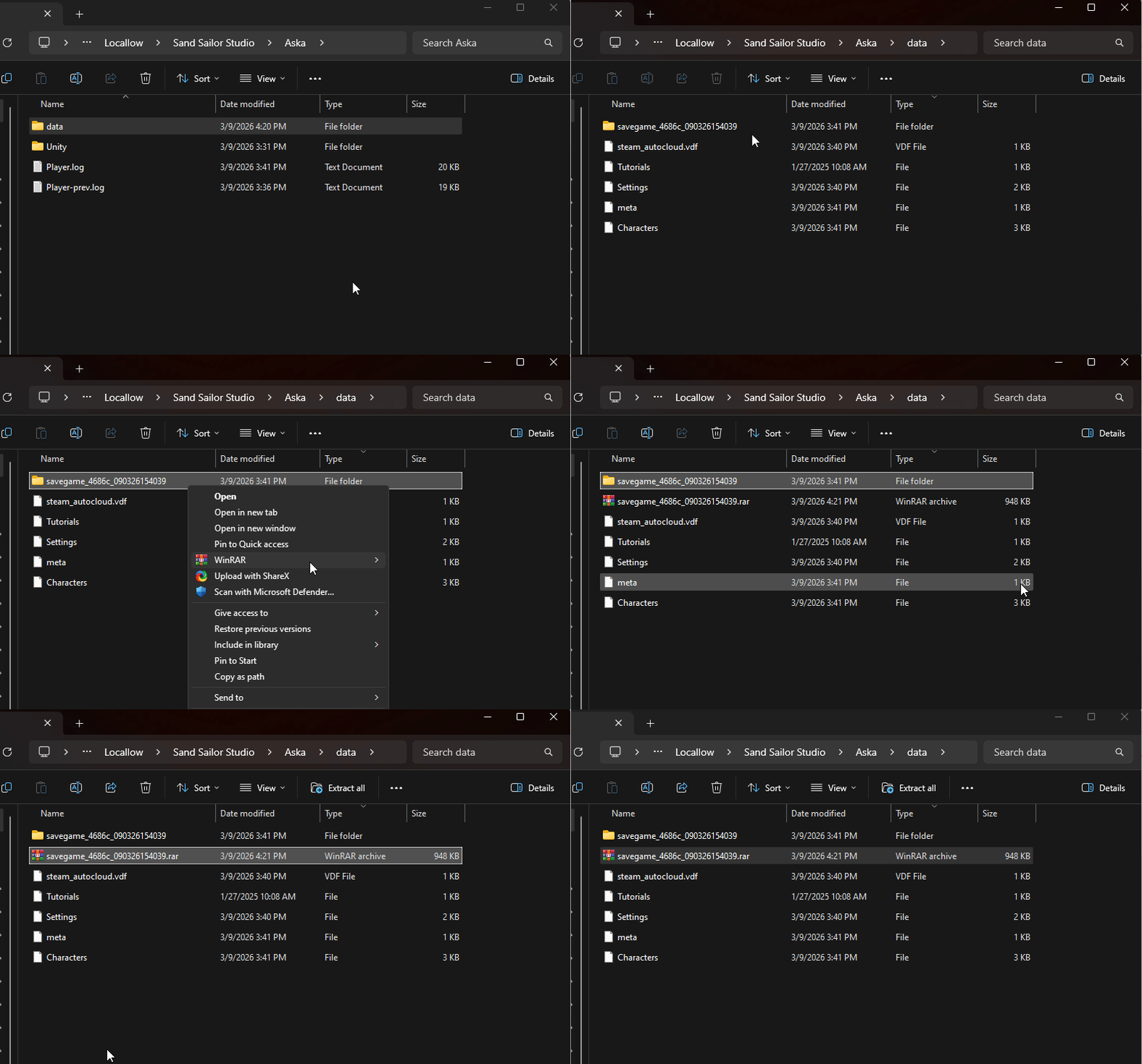
5. Check Step 2 of the guide to open the Saves folder in the Server's File Manager.
Now upload the .rar/.zip file that you created from the save folder. Once uploaded, right-click the file to extract.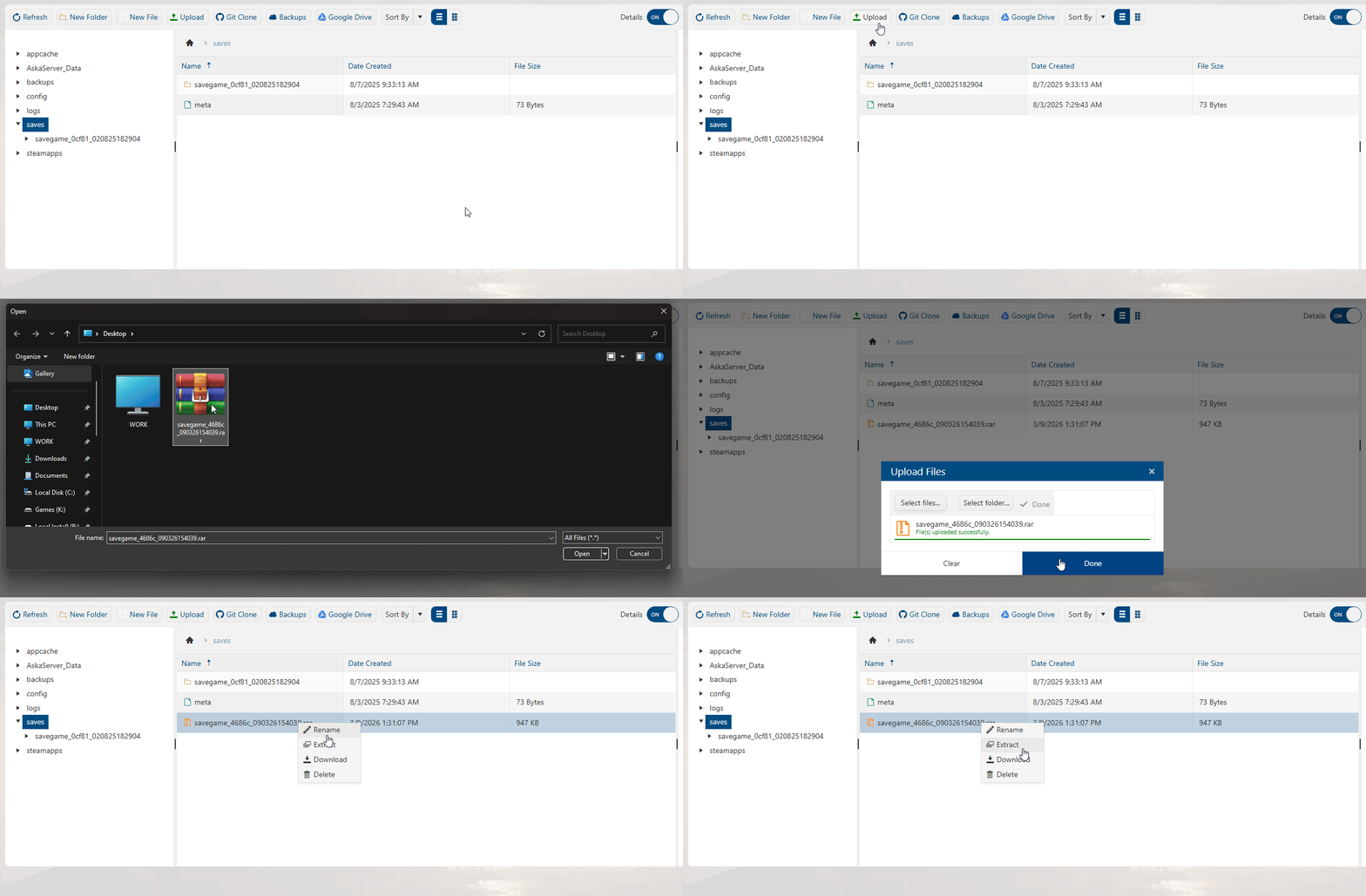
6. Once extracted, right-click the save folder and select the rename option.
Select only the ID after the "savegame_" prefix, and copy the ID.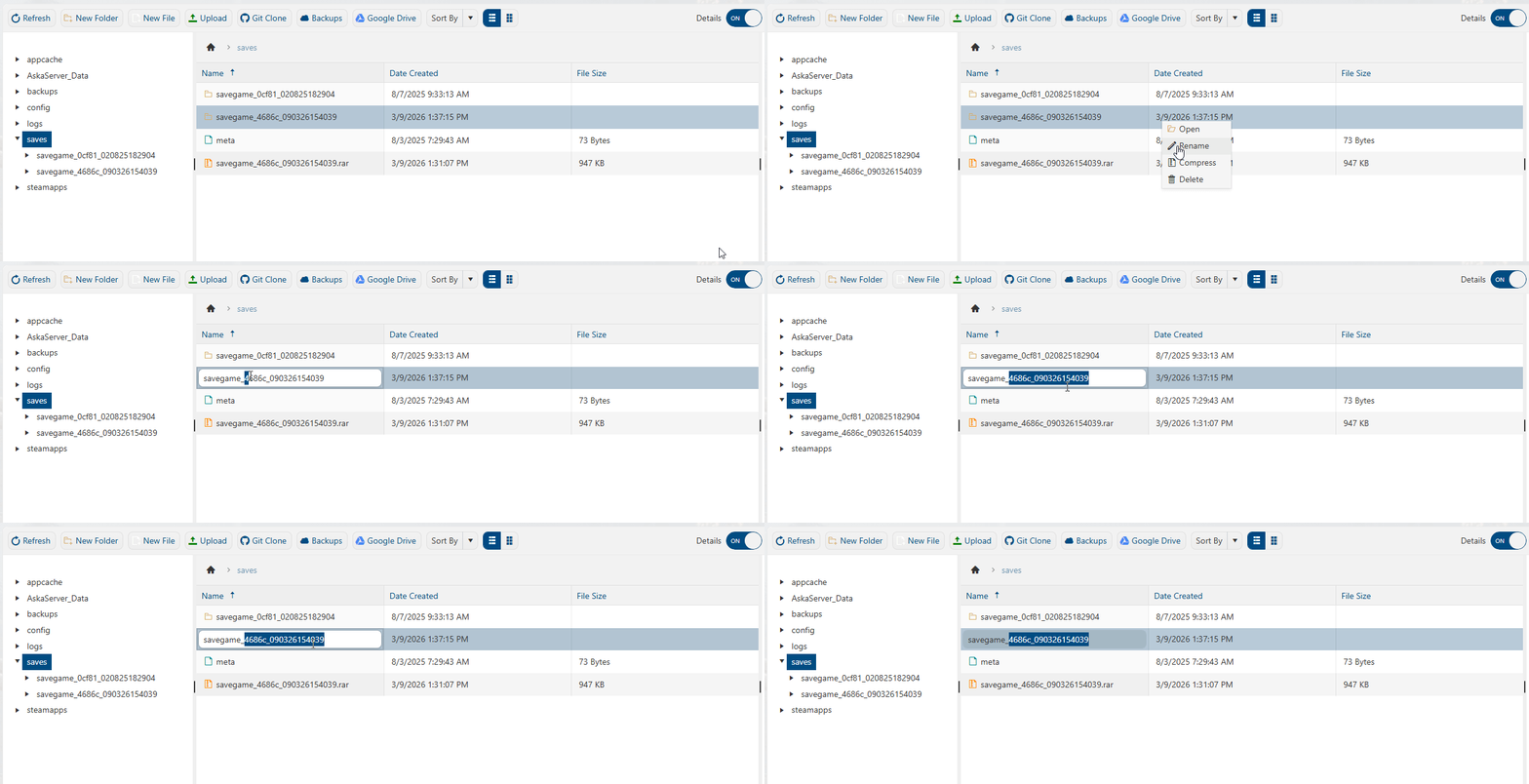
7. Open the Configuration Files tab and select the Text Editor button for the Main Config.
Find the Save ID command and paste the new save ID into it, and save the config.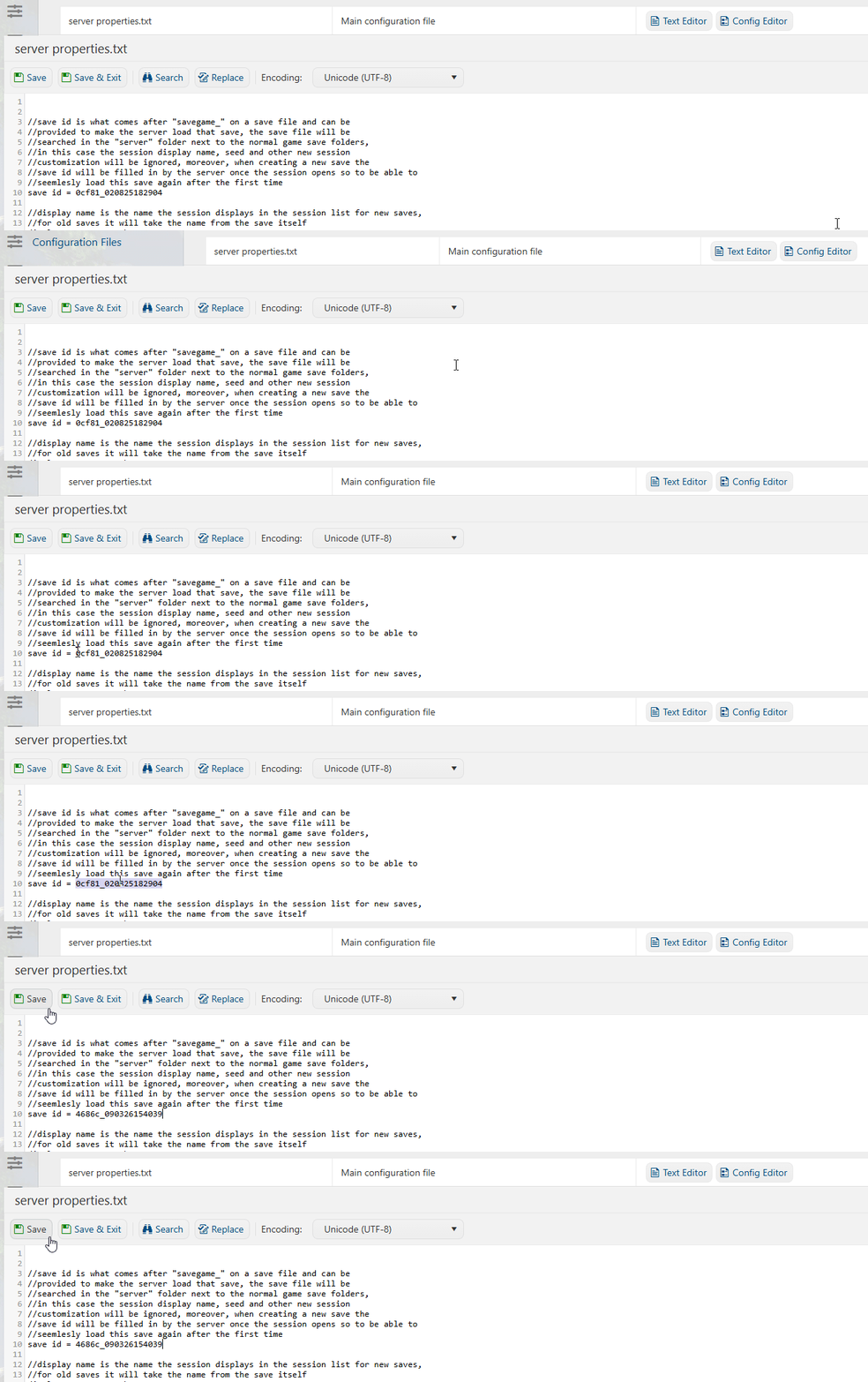
8. Once saved, you can now start the server and continue your save.
Did the above information not work for you?
Please click here to contact our support via a ticket.