

This guide will show you how to become an Admin on your Unreal Tournament 1999 Server.
Click here to order your Unreal Tournament 1999 server with Citadel Servers today!
Becoming an admin on an Unreal Tournament (UT99) server starts with understanding how the game’s server architecture handles authority, passwords, and remote control. The core idea is simple: UT99 grants administrative power through a server‑side admin password, and once that password is set, anyone who knows it can log in during a match and manage gameplay, players, and server settings. Admin access is the foundation of running a healthy, active UT99 server, especially if you’re hosting public matches.
Becoming an Admin on your Unreal Tournament 1999 Server (via Web Administration)
1. Log in to your Game Control Panel and navigate to your service.

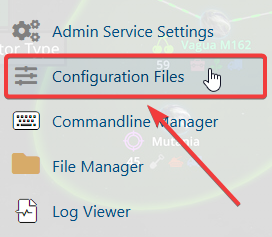

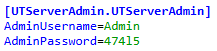

7. Launch the game and join the server.
8. Open the console (tilde key ~) and type:
adminlogin [yourusername] [yourpassword]
9. Once logged in, you can issue administrative commands directly through the in-game console.
Essential Admin & Server Management Commands
| Command | Purpose | Description |
|---|---|---|
admin kick [playername] |
Player Management | Removes a player from the server. Useful for handling disruptive behavior. |
admin kickban [playername] |
Player Management | Kicks and bans a player, preventing them from rejoining. |
admin switchlevel [mapname] |
Map Control | Immediately loads a new map (e.g., admin switchlevel CTF-Face). |
admin servertravel [mapname] |
Map Control | Transitions to a new map while preserving session state; often used for restarts. |
pause |
Match Control | Pauses or resumes the current match. Helpful during tournaments or troubleshooting. |
admin set UWeb.Webserver bEnabled True/False |
Server Features | Enables or disables the WebAdmin interface for remote browser-based administration. |
say [message] |
Communication | Sends a message to all players as standard chat. |
admin say [message] |
Communication | Sends a highlighted message as the server administrator for announcements or warnings. |
Common In‑Game and Cheat Commands (Admin/Cheats Required)
These commands are frequently used for testing maps, managing bots, experimenting with game mechanics, or running custom events.
| Command | Category | Description |
|---|---|---|
summon [class] |
Spawning | Creates an item, weapon, or actor in the world (e.g., summon ut_invisibility). |
killall [class] |
Cleanup | Removes all actors of a specific type, such as killall ut_shieldbelt or killall bot. |
slomo [number] |
Game Speed | Adjusts global game speed; slomo 1.0 is normal speed. |
ghost |
Movement | Enables no‑clip mode, allowing movement through walls and terrain. |
fly |
Movement | Enables free flight without passing through solid objects. |
walk |
Movement | Returns the player to normal walking mode, disabling ghost/fly. |
iamtheone |
Cheat Access | Unlocks cheat commands for the current session. |
loaded |
Inventory | Gives all weapons and full ammo instantly. |
allammo |
Inventory | Sets ammo for all weapons to 999. |
Player & Team Management Commands
These commands affect bots, player identity, and team placement, allowing quick adjustments without restarting the server.
| Command | Category | Description |
|---|---|---|
addbots [number] |
Bot Control | Adds the specified number of bots to the match. Useful for filling teams or testing gameplay. |
killpawns |
Bot/AI Cleanup | Removes all bots and monsters currently active in the game. |
setname [newname] |
Player Identity | Change your in‑game display name instantly. |
setteam [0–3] |
Team Assignment | Moves you to a specific team: 0 = Red, 1 = Blue, 2 = Green, 3 = Gold. |
Useful Debugging & Client Commands
These commands run locally on the client and do not affect server gameplay, making them safe for performance checks and visual adjustments.
| Command | Category | Description |
|---|---|---|
stat fps |
Performance | Displays your current frames per second, useful for performance testing. |
behindview 1/0 |
Camera | Toggles third‑person view on (1) or off (0). Helpful for demos or cinematic shots. |
quit |
Client Control | Immediately exits the game and returns to the desktop. |
Did the above information not work for you?
Please click here to contact our support via a ticket.