

This guide will help you learn how to Configure Warps for Hytale Servers.
Click here to order your Hytale server with Citadel Servers today!
Warps are one of the most useful features you can set up on a Hytale server. They allow players to instantly travel between key locations, whether it’s a spawn point, a marketplace, or a custom-built adventure zone. By configuring warps, you make navigation smoother, reduce downtime, and enhance the overall player experience. In this guide, we’ll walk through the essentials of setting up warps, from understanding how they work to applying best practices for server management. Whether you’re running a small community server or building a large-scale world, mastering warps will help you keep gameplay fluid and engaging.
Setting Up Warps on Your Hytale Server
1. Launch and join your server.
2. Navigate to the location where you want to set the warp.
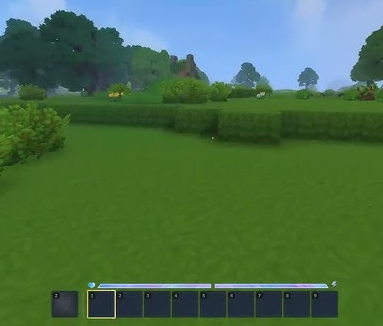
3. Enter this command to create a warp point (substitute <name> with your desired label):
/warp set <name>
Note: To delete a warp, use the command:
/warp remove <name>
4. Grant players the appropriate permissions. Learn more about managing permissions at this link.
| Permission | Description |
hytale.teleport.command.warp |
The main permission to allow warp subcommands. |
hytale.command.warp.go |
Allows the /warp go command. |
hytale.command.warp.list |
Allows the /warp list command. |
5. Enter the teleport command with the warp name to travel instantly.
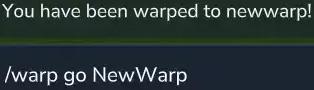
| Command | Description |
/warp list |
Displays the list of warps to teleport to. |
/warp go <name> |
Teleports to the desired warp name. |
/whereami |
Displays the current coordinates of the player. |
How to Configure and Edit Warp Files on your Hytale Server
1. Log in to your Game Control Panel and navigate to your service.
2. Before making any modifications, stop the server from running by clicking the Stop button.

3. Navigate to the Files Manager Tab.
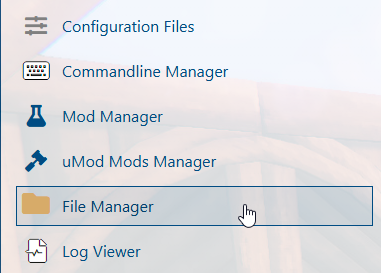
4. Find the following directory: /universe/worlds/(your world) and look for the warps.json file.
NOTE: The warps.json file is generated only after a warp has been created in-game.
5. Open the warps.json file and modify the warp entries as needed.
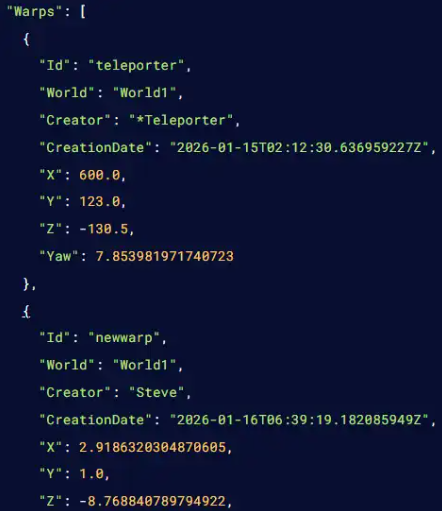
6. After editing, click the Save button to apply the changes to the server.

Did the above information not work for you?
Please click here to contact our support via a ticket.