

This guide will help you learn how to Customize Day/Night Duration on a Hytale Server.
Click here to order your Hytale server with Citadel Servers today!
The day/night cycle in Hytale plays a huge role in shaping the atmosphere and gameplay experience on your server. Whether you want longer days for extended building sessions, shorter nights to minimize hostile encounters, or a balanced rhythm that suits your community’s playstyle, customizing the cycle gives you full control over the world’s pacing. By adjusting the duration of daylight and nighttime, you can create unique scenarios such as survival servers with tense, fast-approaching nights or creative hubs bathed in constant sunshine. In this guide, we’ll walk through the steps to modify the day/night length on a Hytale server, explain why these settings matter, and share tips for tailoring them to match your server’s theme. With just a few tweaks, you can transform the way players experience time in your world.
Adjusting Day/Night Cycles on Your Hytale Server
1. Log in to your Game Control Panel and navigate to your service.
2. Before making any modifications, stop the server from running by clicking the Stop button.

3. Navigate to the File Manager Tab.
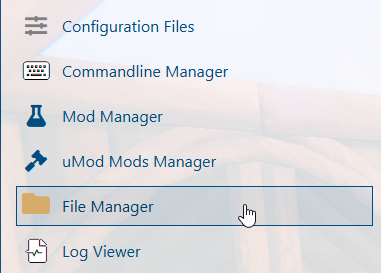
4. In the File Manager, follow this directory path: /universe/worlds/(chosen world)/config.json and double-click it.
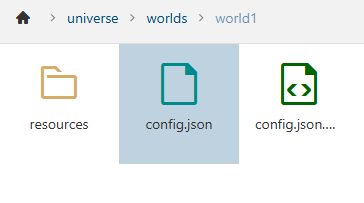
NOTE: If the DaytimeDurationSeconds and NightTimeDurationSeconds entries are already present, proceed directly to Step 7.
5. In the Config.json file, locate the GameplayConfig line and insert a new line directly below it by pressing Enter.
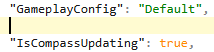
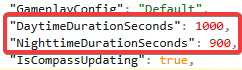
6. Add the following lines:
"DaytimeDurationSeconds": 1600,
"NighttimeDurationSeconds": 1200,
7. Modify the values to match your desired day and night cycle lengths.
8. After editing, click the Save button to apply the changes to your server.

Did the above information not work for you?
Please click here to contact our support via a ticket.