

This guide will show you how to upload your own world to your Terraria and Tmodloader server
Click here to order your Terraria server with Citadel Servers today!
For the base vanilla game:
1. Log in to your Game Control Panel.
2. Open the File Manager Tab and open the Worlds folder in the main directory.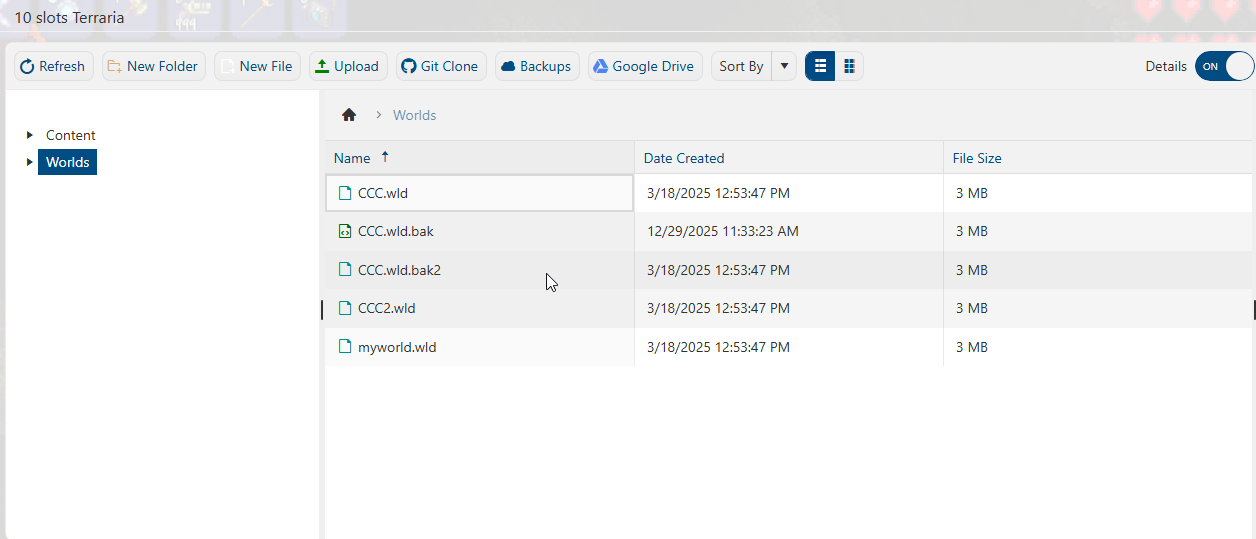
3. Click the Upload button and upload your world files from your PC.
(The file location of this will be shown later in the guide.)
4. Open the Commandline Manager and click "Modify" of the "Load World Only" line.
Select your world in the "World to Load" dropdown and then click "Apply" to save.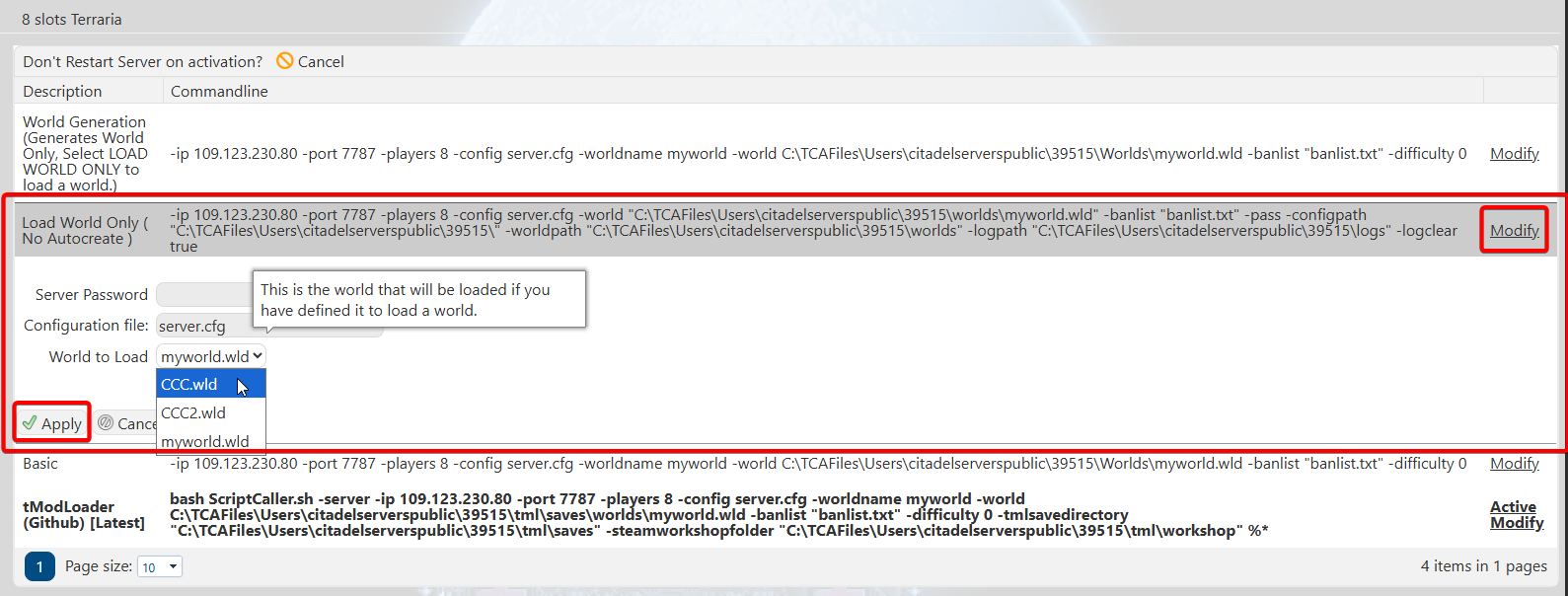
5. You can now start the server, and it will load in your world.
For TModLoader:
1. Log in to your Game Control Panel.
2. Open the File Manager Tab and find the TML worlds folder.
It is in "<Home>/tml/saves". The world files for TML need to be here,
and not in the World folder in the main folder, it won't load otherwise.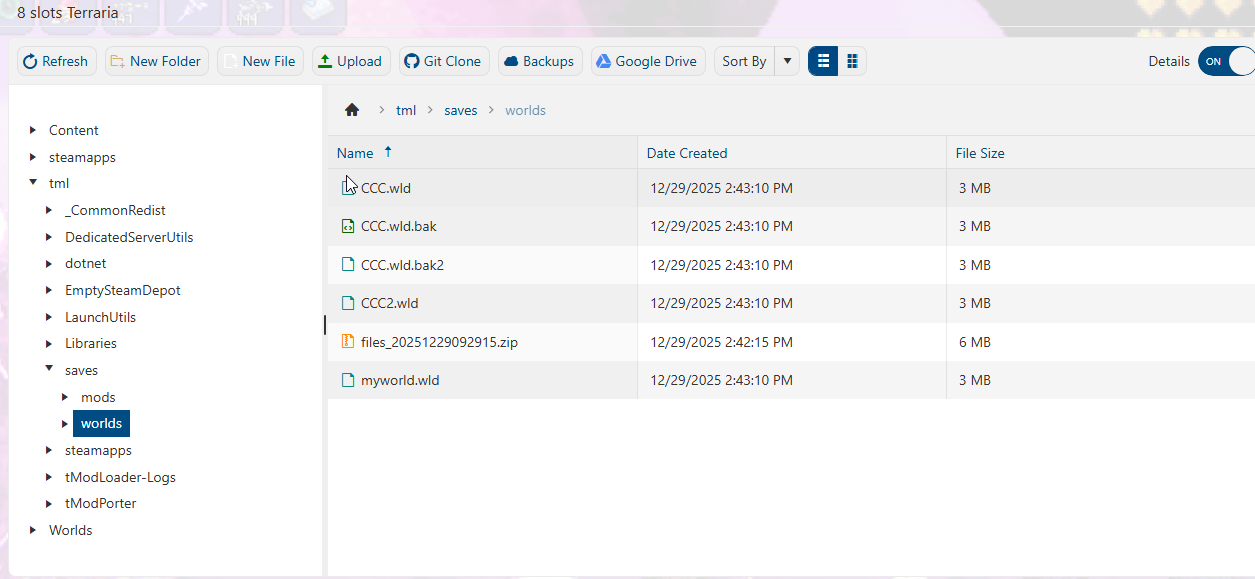
3. Click the Upload button and upload your world files from your PC.
(The file location of this will be shown later in the guide.)
4. Open the Commandline Manager and select "Modify" on the TModLoader-specific line.
This will open additional options. On the World Name line, input the name of your uploaded world.
Preferably, the name needs to be short as the Commandline does not accept spaces or "_".
You can rename the world file if you need to in the File Manager.
Just right-click the file and select "Rename" to a simpler name.
Select the dropdown to load a world instead of generating a new one. Click "Apply" to save.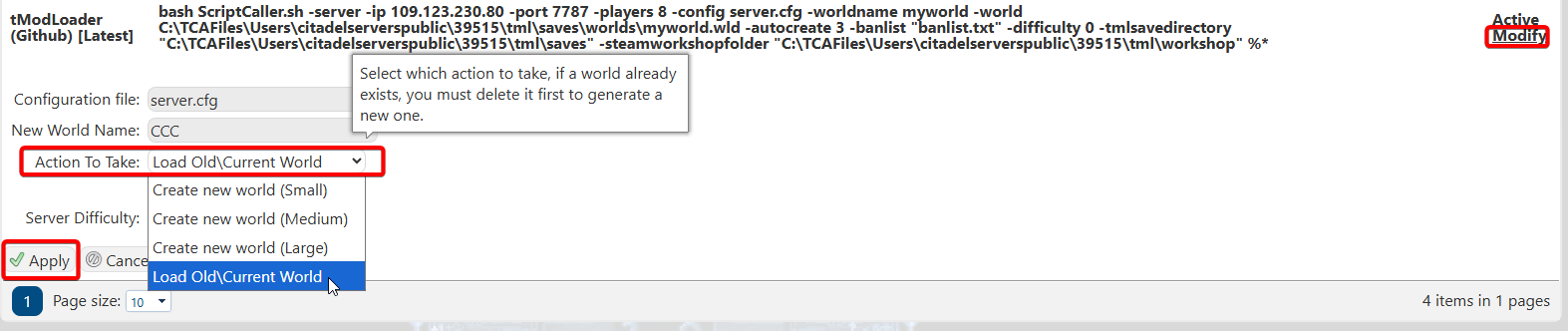
5. You can now start the server, and it will load in your world.
To find your world files for both Vanilla and Tmodloader.
Open the File Manager of your PC,
Navigate to the "Documents" section and find the Terraria Folder in the My Games Folder.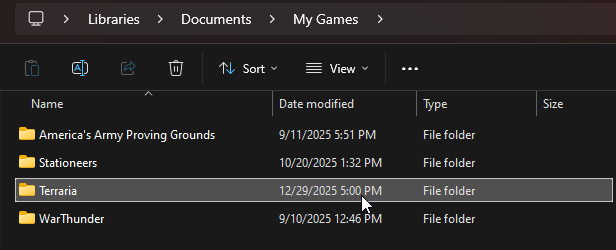
For the Vanilla Base Game, the world folder is in the main folder.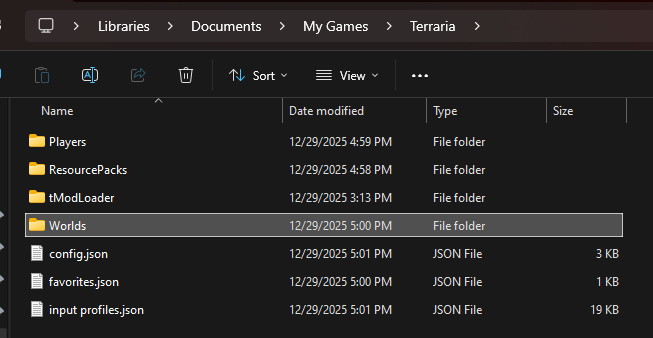
For TModLoader, the world folder is just up ahead in the TModLoader folder.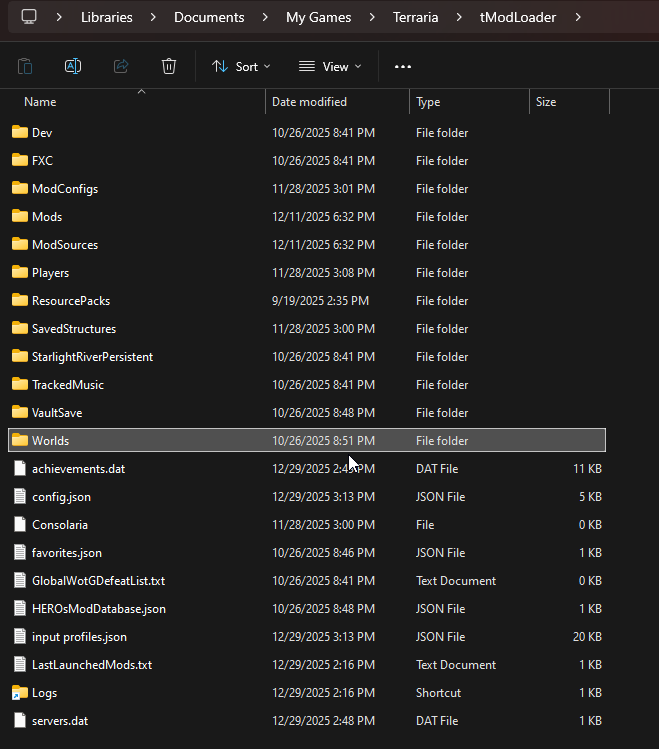
For both the Base Game and TML, it is important to include all the associated world files.
For the base game, the .wld file is needed. For TML, both the .wld and .twld are needed.
Both types may also have a backup file called .bak or .bak2. Please also include this when uploading.
Did the above information not work for you?
Please click here to contact our support via a ticket.